
Explore FAQs
When you have a question, you want to get answers as quickly as possible. Start your research here.
Our FAQs are here to help you find answers quickly and conveniently
Chances are, you’re not the first to have your question! Here, we’ve gathered the most common questions from our members along with helpful answers, so you can find the information you need quickly and easily. If you need more support, just click "Chat With Us" below.
Mainstreet Talk is published quarterly via email.
To ensure you receive future emails, please make sure we have your preferred email on file. Simply log in to OnlineAccess to update your email address.
If you are having trouble receiving our emails or finding them in your spam folder, you may need to whitelist us. Whitelisting an email address just means you add them to your approved senders list. Doing this protects against overzealous spam filters.
Whitelisting is a quick task to ensure the sender of an email gets added to the recipient’s safe senders list.
Here are simple instructions on how to ensure that our email lands in your inbox every time:
Gmail
Yahoo
AOL
Apple
Android
Gmail
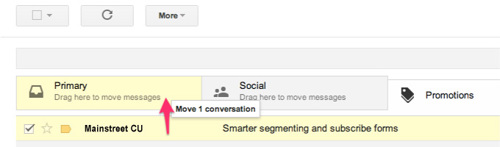
Getting all future emails from a sender to appear in the “Primary” tab (instead of “Promotions”) is a quick, two-step process.
First of all, drag-and-drop the email message from beneath the tab it’s currently filed under, to the “Primary” tab:
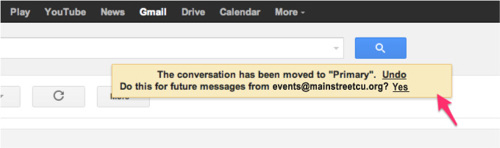
Once done, an alert will appear with, “This conversation has been moved to Primary. Do this for all future messages from [email protected]?” Select “Yes”:
Yahoo
When opening an email message, a “+” symbol should display next to From: and the sender’s name. Select this and an “Add to contacts” pop-up should appear. Select “Save”: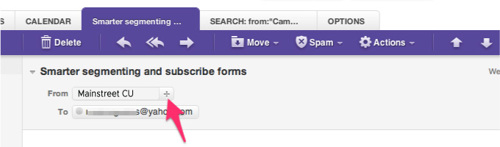
AOL
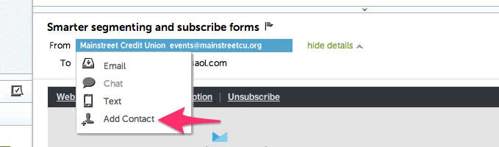
In the preview pane for an opened email message in AOL Mail, select the sender’s From name under the email’s subject line and select “Add Contact” from the drop-down menu:
Apple Mail
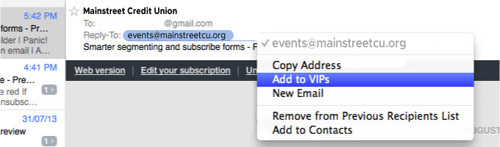
By selecting the From, or Reply-to on an email message, you can choose to “Add to Contacts” or “Add to VIPs.”
Android
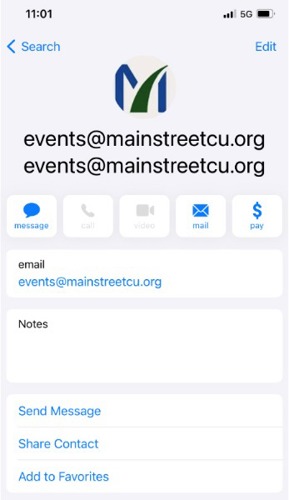
On Android devices, open the email message and touch the picture of the sender that displays before the message. Tap “Add to Contacts.”
Mainstreet Credit Union is dedicated to supporting our members' financial journeys with trusted local services in Kansas City, MO and Kansas.