
At Mainstreet, membership helps you move forward—your way.

Online Banking
Money management is a whole lot easier when you use OnlineAccess to transfer funds, keep up with all your activity, and know where your balance stands.
When's the best time to manage your Mainstreet Credit Union accounts? Anytime you want! Our digital banking tools put you in control, saving you time and making things stress-free.
Wherever the day takes you, be assured you can always take care of all kinds of financial tasks online or on your mobile device. Mainstreet Credit Union's digital banking tools give you the power and flexibility to move money where you want it to go, whether you're at home in Kansas or Missouri, or anywhere else in the world.
Money management is a whole lot easier when you use OnlineAccess to transfer funds, keep up with all your activity, and know where your balance stands.

Download our app to your favorite device and get the power of digital banking in your hands wherever you go.

With Bill Pay, it's easy to schedule one-time or recurring payments and keep all your monthly bills organized in one secure location.
Online - members can view their statements through OnlineAccess.
By mail - members who have opted in for printed statements receive monthly or quarterly statements, based on the type of account they have. Mailed statements are subject to a fee. Please refer to the Fee Schedule for current fees.
We are upgrading our card services platform to provide improved fraud monitoring and new self-service tools through Online Banking and the Mobile App. Members will have more control over managing cards, reporting issues, and protecting accounts.
No. Most members will continue using their existing card unless otherwise notified by the credit union.
No. If your card is already enrolled in a digital wallet, it should continue to function normally unless otherwise communicated by the credit union.
If there are non-sufficient funds, the debt will be returned to the Bill Payer provider via banking channels. The ACH return will prompt the system to block your account, preventing you from making more payments until the NSF is resolved. Any recurring future dated payments scheduled for release during the time the account is blocked will not be sent.
You can use mobile banking to pay a bill or pay a person.
Log in
Select Pay under your account in mobile
If it is your first-time using Payments, it will ask you to enroll, click Enroll
Select the merchant or person you would like to pay
Select an account to take funds from, and then input the Amount
If you would like to set the date for the payment, Select More options and select the desired date
Select Submit
You can use mobile banking to pay a bill or pay a person.
Log in
Select Pay under your account in mobile
If it is your first-time using Payments, it will ask you to enroll, click Enroll
Select Pay a person > Person to pay (To add a new person, select Add another person and fill out the necessary information) or Select the person to pay in mobile
Select an account to take funds from, and then input the Amount
If you would like to set the date for the payment, Select More options and select the desired date
Select Submit
Mainstreet Talk is published quarterly via email.
To ensure you receive future emails, please make sure we have your preferred email on file. Simply log in to OnlineAccess to update your email address.
Whitelisting is a quick task to ensure the sender of an email gets added to the recipient’s safe senders list.
Here are simple instructions on how to ensure that our email lands in your inbox every time:
Gmail
Yahoo
AOL
Apple
Android
Gmail
Getting all future emails from a sender to appear in the “Primary” tab (instead of “Promotions”) is a quick, two-step process.
First of all, drag-and-drop the email message from beneath the tab it’s currently filed under, to the “Primary” tab:
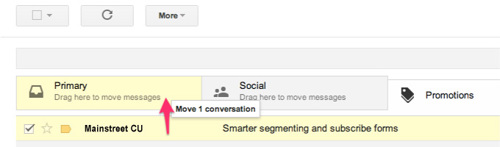
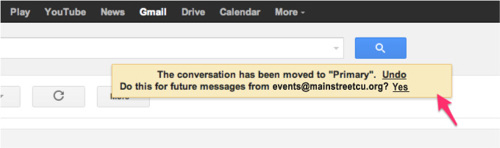
Once done, an alert will appear with, “This conversation has been moved to Primary. Do this for all future messages from [email protected]?” Select “Yes”:
Yahoo
When opening an email message, a “+” symbol should display next to From: and the sender’s name. Select this and an “Add to contacts” pop-up should appear. Select “Save”: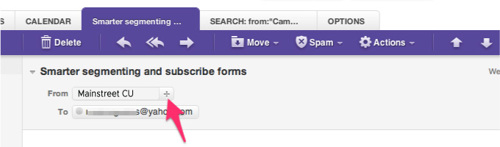
AOL
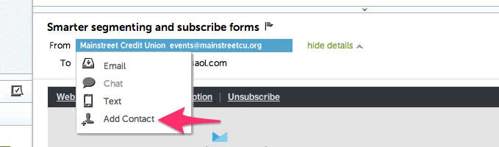
In the preview pane for an opened email message in AOL Mail, select the sender’s From name under the email’s subject line and select “Add Contact” from the drop-down menu:
Apple Mail
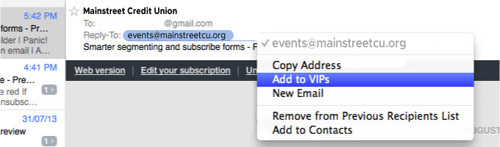
By selecting the From, or Reply-to on an email message, you can choose to “Add to Contacts” or “Add to VIPs.”
Android
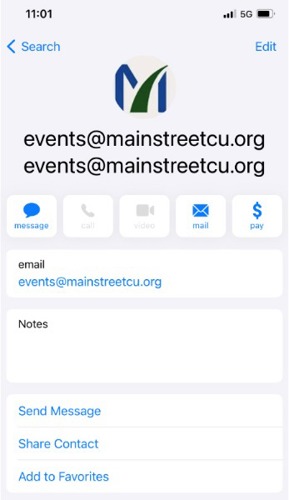
On Android devices, open the email message and touch the picture of the sender that displays before the message. Tap “Add to Contacts.”
A cookie has to be downloaded to the computer to allow online access. The cookie name to be installed is "[email protected]."
You will need your Social Security Number and your mortgage loan number. At the log-in screen, click on the link for new users, enter your Social Security Number and mortgage loan number, and then create a user name and password.
The Insights PFM tool is specifically designed for consumer use and not for the level of data or transaction volumes typically associated with larger commercial accounts. The product’s budgets and categories are set up around personal/consumer-specific needs (personal care, kids, shopping, etc.), and the tool doesn’t offer categories that would be relevant for commercial use. Although Commercial customers can see the tab their Sub-Users cannot.
It is true, for certain accounts a delete option will not appear. If the delete option doesn't appear this means that the account was automatically added by your home institution. These accounts cannot be deleted; however, they can be excluded. Excluding an account hides that account, its transactions, and its balance from your view in the software apps. This essentially "deletes" the account with the option to re-include it in the future if it ever becomes necessary.
Some institutions choose to send all the accounts that you are associated with in the data feed when your accounts are initially linked. This is a great benefit to allow you to see everything in one spot, but it may be more than what you want. You may be associated with an account for your child, spouse, or business that you don’t want to show in your personal budgets.
The exclude account button will help you keep track of totals and view transactions, but the transactions aren’t calculated into any of your other views. This will help you to see exactly what you want to see!
Open “Insights” go to Net Worth section and click on ‘View Net Worth’ and add Asset, then enter the account details and click ‘Save It’.
You may have added an external account that is no longer needed, or an account may automatically sync that you don’t want to factor into your financial picture. Either way, you’re in control and can remove it.
*Note: Deleting the account is different than deleting an institution connection. If you delete the account, only that account will disappear, and the connection will persist. If you delete the institution connection, however, it will delete all the accounts beneath that connection. The steps for deleting the connection are also included below.
Deleting an Account
Select ‘Accounts’ from the top navigation bar.
Select the account you want to delete from the page.
Click on the trash can icon at the bottom right-hand corner of the account detail box.
The ‘Delete This Account’ window will pop up.
Click on Delete.
Deleting an Institution
Click on Manage Institutions in the top right of the screen.
Find the Institution you wish to remove.
Click on the trash can icon on the right-hand side.
Select Delete Institution.
*Note: You will not have the option to delete your home institution.
If you have a registered Online Access User ID, there are several ways that you can add external accounts.
Select Insights in the Menu and then click on “Link Account” within the menu.
Second, select the Account options on the Dashboard and click “Link an Account”.
When transactions are imported, they are auto categorized based on previous categorizations of similar transactions as well as those of other authorized users. The process is an estimate based on trends and characteristics of the transaction. The authorized user also has the option to review and re-categorize where needed. When you change a transaction category, Insights PFM will remember your preference for next time.
Mint.com is a third-party software provider that allows customers to aggregate their financial information and is not a financial institution. It does not allow users to perform any online banking activities, such as pay bills or transfer money. Insights PFM is fully integrated with our online banking platform and offers easy-to-use tools to help you see your full financial picture, within a platform you know and trust.
Online Banking account information is updated in Insights daily.
You will be contacted through the e-mail address listed in your ‘Profile’.
The following steps may help:
Try searching for the URL instead of the name.
Make sure you are entering the name correctly. (i.e. Wells Fargo not Wellsfargo)
Instead of searching for the generic term 'Master Card', search for the issuer listed on the back of the card.
Here are a few tips that might help:
Answer as many questions as you put on file when you registered with your financial institution.
The number of questions you need to answer may be less than the number of form fields displayed on the page.
For some financial institutions, the questions and answers need to be in the exact same order as they are listed on your financial institution site.
If you've forgotten the questions, you can try logging into the online banking at your institution's website or calling their online banking support, to retrieve them.
Answers to these questions may be case-sensitive. i.e. 'Cat' will work, while 'cat' will not.
Insights is available free-of-charge to all our members.
Our new online banking tools bring all your accounts and financial information into one place and offers new budgeting and spending tools to help you stay on top of your finances.
With Insights PFM (Personal Financial Management), you can:
See your transactions automatically categorized and graphically displayed in the account summary page.
Change and/or exclude transaction categorizations from your spending analysis.
Create and manage budgets based on your spending habits.
See all your accounts in one place by linking accounts you hold at other financial institutions.
Add assets and liabilities (e.g. car, home, or even money under the mattress) so you can see a more complete picture of your finances.
Create account groups so that transaction history and spending analysis for related accounts can be viewed together.
View your spending and budgets using Online Access and our Mobile app.
If you are unable to locate your institution, select the Help (?) icon located in the top menu. From there you can submit a request by clicking on the "Submit a Support Request" option at the bottom. Please submit the name you searched for, the complete institution name, their URL and any other additional details you can provide.
There are many types of online banking accounts, and not all are compatible with common aggregation methods. The Insights PFM provider utilizes multiple aggregation sources and uses an aggregation engine to provide the best possible coverage, but when an unsupported institution is encountered, a manual account can be created in the Accounts widget.
Due to factors outside our control, including approval of the financial institutions themselves, we cannot guarantee that your institution will be supported, but we will do our best. We add support for more banks and credit unions all the time.
Click here for a step-by-step tutorial on how to update your goals on Insights.
Budgets can help you track and control your spending in select budget categories. You can use budgets to track all of your regular household expenses, or just specific categories that you want to monitor more closely. Budgets are useful for setting and working towards financial goals, or simply being more aware of your spending habits.
The Spending Wheel displays your spending across all categories for the time period selected. Use the date range selector to specify what date range you would like to view.
You can click on a category from the list, or in the wheel, to view your subcategory spending. Then click the center of the wheel or from the list to view the specific transactions in the selected subcategory.
*Note: Your transactions must be categorized for the Spending Wheel to show actual spending. If your spending in a given category looks wrong, review your transactions for inaccuracies.
When accounts are initially added to an external account, an initial request of 90 days of history will be made. After the initial account setup, Insights PFM will pull new transactions from the last 30 days, so you must sign in at least once every 30 days to avoid creating a gap in your data.
When the consumer accesses the account each day the account will be updated with the recent transactions for the account. Currently there is no limit to archival history.
Review your transactions to make sure they are categorized correctly. A “missing category” is caused by a large income transaction that has been categorized inappropriately.
Automatic Loan Payments allow regular payments on a Mainstreet loan to be transferred from your checking or savings account. To set up automatic payments, call the Member Assistance Center or stop by any branch location.
OnlineAccess users may sign up for Mainstreet's Bill Payer service. Bill Payer provides flexible options for paying Credit Union loans and other businesses or individuals. Learn more.
You can use our mobile banking app, OnlineAccess through your PC, or PhoneAccess from a touch tone phone. You may also visit any branch or call our Member Assistance Center.
No alerts will need to be re-entered in the new system. To set up alerts in mobile banking:
Log in
Select the account you would like to set up an alert for
Click Alert preferences in the menu or Manage alerts in mobile
In the Balance alerts section, select Add alert.
Select Above or Below, and then input a dollar amount.
In the Alert/Notify by field, select Email, Text message, or In-app message.
Select Add Alert to save the alert
Repeat steps for Transaction alerts
Alerts can be deleted at any time in mobile banking.
Log in
Select the account you would like to edit an alert for
Click Alert preferences in the menu in mobile
Under Alerts
Click Edit next the alert you would like to change
Click the Trashcan icon or click Remove in mobile
Alerts can be edited at any time in mobile banking.
Log in
Select the account you would like to edit an alert for
Click Alert preferences in the menu or Manage alerts in mobile
Under Alerts
Click Edit next the alert you would like to change
Change your criteria for the alert
Click Save
Account statements can be viewed from mobile banking. These are only available for accounts already enrolled in eStatements.
Log In
Click on the slide-out menu
Click on eStatements in the slide-out menu
Click on Monthly Statements
Click on the month you'd like to view
NOTE: Only the last 24 months of statements will show.
Yes! At the bottom of the dashboard, click "Organize dashboard" to drag and drop, delete or add information.
Select the account you would like to add an alert to and then select "Alert preferences." You may set up balance or transaction alerts based on low or high thresholds. You may choose to receive alerts by email, text or within the app.
After successfully signing in, you will see your "Dashboard." A list of your accounts will be presented at the top. To view all accounts on one screen, select "View All." Below your account listing, "Quick Actions" are presented (Transfer, Pay, Deposit, Message). Under the "Quick Actions" icon you will find Payments, Transfers, etc.
Transactions appear as pending until final processing occurs.
Yes, there are daily and monthly limitations to the number and dollar amounts that can be deposited through a mobile device. Contact Member Assistance at 913-599-1010 for specific details.
NOTE: Members can access to any of their Mainstreet Credit Union accounts, excluding Certificates and Christmas Clubs. All IRA contributions are same year ONLY.
Mobile deposit limits are based on the type of checking account you have. These limits include a daily dollar amount and number of items deposited daily. If you have specific questions, come in or call the credit union.
Mobile deposit is now available for all savings and checking accounts, but you must enroll first. Mobile deposit can only be done through the mobile app.
Log in
Select Deposit Check from the slide out menu in the mobile app
Click Enroll Account and go through the sign-up steps
Once your request has been processed and approved (typically approved the next business day), tap Deposit a Check
Enter the check amount
Tap Continue
Select the account to deposit to
Take a picture of the front of the check and tap continue
Take a picture of the back of the check and tap continue
Verify the information and tap Submit
No, conducting a mobile deposit using the Mainstreet Credit Union mobile app is free.
You should retain the check for 30 calendar days after the deposit has posted to your account. After that time, you may shred it.
To transfer between your Mainstreet Credit Union accounts:
Log in
Tap the slide-out menu > Transfer > Make a Transfer
Select your To and From account and amount
Click more options to change the frequency and date if desired
Click Submit
Yes, all existing scheduled transfers in the previous mobile banking system have been moved to the new system.
Log in
Select the account you are needing to view
To view all account activity, view the Transactions tile in the mobile app
Account transactions can be searched in mobile banking by amount, date, tags, etc.
Log in
Select your account you want to search
Select Transactions
Tap the magnifying glass icon
Tap the icon to use Advanced Search options
You can add notes, tags, and images to any transaction inside of mobile banking. To begin:
Log in
Click on any account
Click on Transactions
Select the Transaction you wish to edit and pull up the transaction’s details page
Click on the appropriate icon for one of the following:
Add Tags
Add Notes
Add Images
Follow the on-screen prompts to update the transactions
Tap < Transactions in mobile
Any tags, notes, and images attached to transactions will be accessible on all devices when you log in to mobile banking in the future.
NOTE: Transactions are available Mastercards or Mortgages through the “MyMastercard” or “MyMortgage”.
Yes. You can get locked out of the enrollment process if too many attempts are made with an incorrect verification code (more than six times in a single hour). You must wait an hour to try again following your first attempt. If you make more than 20 unsuccessful attempts in a 24-hour period, your login will be 'Suspended' and you will not be able to attempt again for 24 hours. If you have questions or need additional assistance, please contact our Member Assistance Center at (913) 599-1010 during our regular banking hours for assistance.
Codes sent by email are not available, but can be received using one of the following options:
Text message
Phone call
Authy App (A third-party app that generates a one-time passcode. To register you will need an email address and phone number.)
You can reset your own two-factor authentication enrollment in both the app and online by going to your Profile page, then select Security within the Settings area.
Two-Factor Authentication (2FA) is a security feature that helps safeguard your account information. To implement 2FA, you will need to enroll an email address and a phone number (mobile or landline). Once this information is entered, you'll choose one of three options to receive a one-time verification code:
Text message to the mobile phone entered, or
Automated phone call to phone number entered, or
Authenticator App. Download the Authy app
After entering the verification code from a secure computer, you have the option to select "Don't ask for code again on this computer." This allows you to avoid entering a verification code during each login. This option should never be selected on a shared or public computer.
If you select to receive a phone call (cell phone or landline), you will enter a single specific digit, as directed, before the verification code is provided. Caller ID will show as "Digital Banking".
If you fail to answer the authentication phone call, you will need to select the option to have the code re-sent. The system will not leave codes on voicemail.
Note: The phone number used to send the verification code may not always be the same phone number but will always be sent from a US-based phone number.
Codes will expire within three minutes.
Yes! If you’ve added more profiles to your mobile app, you will need to set up 2FA for each of them. If the account has already enrolled in 2FA, you will need the verification code sent to that user.
There are several reasons you may be prompted for a verification code. This may include:
logging in using different browsers
deleting your browser history
you have set your browser settings to delete your cookies and history automatically
Please be sure the phone number you entered is correct. If it needs to be changed, contact our Member Assistance team at (913) 599-1010 during regular business hours.
You can update your phone number or email address in mobile banking.
Log In
Click on the User Profile icon and click Settings
Click Edit next to your phone or email
Verify your password
Edit your contact information
Click Save
Phone and email updates will happen immediately. All address updates will be reviewed by a member service representative and you may be contacted for additional information.
You can change your username or password at any time in mobile banking.
To change username:
Log in
Select your username icon in the top right corner or menu in mobile banking
Select Settings and then select Security option on the left side menu
In the Username field select Edit
Enter your current password when prompted
Change your username and select Save
To change password:
Log in
Select your username icon in the top right corner or menu in mobile banking
Select Settings and then select Security option on the left side menu
In the Password field select Edit
Enter your existing password, and then enter a new password
Select Save
You can rename any account in mobile banking.
Log in
Select an account from the Accounts section
Select Settings from the options menu
Next to the account name, select Rename
Type the new name, and then select Save
You can rearrange the order your accounts display in mobile banking to reflect the sequence you want.
Log In
From the Accounts click on the three dots and click Organize Accounts in online or click the opposing arrows in mobile
Drag and drop the accounts to rearrange the order
Click Done
You pay a predetermined interest rate for the duration of the mortgage. Mainstreet offers you a choice of 10, 15, 20 or 30-year terms. You will pay more interest over the term of the 30-year mortgage but your monthly payments are lower than the shorter-term fixed-rate loans that we offer. With the 10, 15 or 20-year mortgage, you have a higher monthly payment but you build up the equity in your home faster.
Yes. Beginning July 27, 2026, you can submit card disputes directly through Online Banking and the Mobile App without calling the credit union.
Yes. Members can report a card as lost or stolen directly through digital banking.
Yes. Travel notices can be submitted through Online Banking or the Mobile App before your trip. No phone call is required.
Important: A travel notice does not eliminate all fraud monitoring. If suspicious or unusual card activity is detected while you're traveling, you may receive a fraud alert text asking you to verify a transaction. These alerts help protect your account and ensure legitimate purchases can be processed as quickly as possible. Fraud alert text messages are sent 24/7 from 2WC using short code 96923. We recommend saving 96923 in your contacts so you can quickly recognize and respond to fraud alerts. If there is not a response to the text, follow-ups will be sent via email and then a phone call.
Yes. You'll be able to instantly turn your card off through Online Banking or the Mobile App. Once you locate the card, you can turn it back on yourself without calling the credit union.
Yes. You can customize alerts using:
SMS/Text Messages
In-App Push Notifications
Choose the notification method that works best for you.
Yes. You can establish card controls including:
Merchant category restrictions
Transaction type controls
Spending limits
These controls provide an additional layer of account security and spending management.
Contact Us
If you have questions regarding your ATM or debit card, please contact us or visit your nearest branch. You may also send a secure message through Digital Banking.
With our new mobile app, you can sign into multiple user-profiles and quickly switch between them using a PIN instead of entering a username and password. If you add more profiles to your mobile app, you will need to set up two-factor authentication (2FA) for each of them.
From the top of the menu bar press the person icon next to your profile name.
Select Add profile.
Sign in to the second profile.
If prompted, answer the security question. If not, continue to the next step.
If prompted, complete the profile information in the form, and then select Done.
Enter a PIN for the new profile.
Confirm the PIN for the new profile.
From the top of the menu bar press the switch icon next to your profile name.
Select the profile you wish to log into.
Enter the PIN or use the fingerprint authentication if prompted.
Yes. App version 3.34.1 or higher requires iOS 17.0 or newer on iPhone and iPad. App version 3.34.0 or higher requires Android 9 (API Level 28) or newer on Android phones and tablets. The app will not open on devices running older operating systems. Devices must have access to the internet.
Yes, you will use the same user ID and password that you use to log in to online banking.
Two-Factor authentication uses a unique one-time access code to verify identity and log on to mobile banking. If you are unable to receive text (SMS) messages, you can choose to receive your access code via a phone call.
On the verification code screen click Try another way located beneath the Verify button
Select Phone Call and click Next
You will receive an automated phone call that will provide your access code (Have a pen and paper ready)
Return to the verification code screen
Enter your access code and click Verify
If you are still having trouble, contact the credit union to ensure we have the correct phone number on file.
If you are an existing mobile app user, you will automatically be prompted to download the new app. Or, simply search for Mainstreet Credit Union within the App Store or Google Play.
Enter your existing Username and Password to sign in
Enter your email address and a phone number where you can receive a phone call to obtain a verification code.
Enter the verification code received and click “Verify.”
Review the User Agreement and click “Accept.”
You will be taken to new dashboard to begin your new mobile banking experience.
NOTE: It may take some time for balances to fill in after logging in the first time. If you see a $0 balance, please log out and log back in.
If you are a NEW mobile app user, search for Mainstreet Credit Union within the App Store or Google Play. You will need your member number and social security number.
Create a Username and Password to sign in
Enter your email address and a phone number where you can receive a verification code.
Enter the verification code received and click “Verify.”
Review the User Agreement and click “Accept.”
You will be taken to the dashboard to begin.
Download the new mobile banking app from the App Store or Google Play.
Remove the old app: Be sure to delete the MCU Mobile app icon.
To reach the OnlineAccess login page:
Visit the OnlineAccess portal
Sign in using the green box in the upper left-hand section of our homepage
If you have not enrolled in OnlineAccess, select Enroll on the OnlineAccess login page to get started.
You will automatically be signed out once you swipe or close the app. Each time you access your app, you will be required to enter your passcode, use your fingerprint or utilize the facial recognition feature in order to log in again.
There are no fees to download and use mobile app; however, connectivity and usage rates may apply. Contact your wireless service provider for more details.
If you are experiencing difficulties logging on, contact the Member Assistance Center:
913-599-1010
(888) 395-1010 toll-free
8 AM – 6 PM CDT, Monday – Friday
9 AM – 1 PM CDT, Saturday
If you cannot remember your Personal Access Code, contact the Member Assistance Center at 913-599-1010.
Yes, you can easily reset your login credentials by clicking on the 'Forgot?' link on the mobile app.
An email and a phone number are required for the two-step authentication. The one-time access code will be sent via text or phone call. The phone number must match our records for the additional security layer to work correctly.
As a security measure, access to your account is locked after a limited number of unsuccessful login attempts. Further attempts to login will fail, displaying the above message.
To reset your password and unlock your account, contact the Member Assistance Center.
913-599-1010
(888) 395-1010 toll-free
8 AM – 6 PM, CDT Monday thru Friday
9 AM – 1 PM, CDT Saturdays
No. Check the “Don’t ask for codes again on this computer” box if you do not want to receive a confirmation code or phone call each time you log in. If you prefer to input a confirmation code with each use, you can leave the box unchecked or use the 2-Factor Authentication app to deliver the code.
NOTE: If your browser is set to clear cookies every time, then clicking the button will not help. If you ever want to remove a device and reset your security settings, you can change them in settings once logged in to mobile banking.
This error is present during the enrollment process or when updating credentials. Click on Show Rules below the username and password field to see the credential requirements.
This error is present during the enrollment process and means that the phone number you entered does not match the phone number we have on file. If you have an alternative phone number, you can try again. If you would like to update your phone number in our system or need other assistance, please contact us.
This error is present during the log in process and typically means that our records show that you have previously created an account with us. If you forgot your username and password, on the log in page click Forgot? Follow the steps to recover your account.
This error is present during the log in process and typically means that your account information does not match our records. Please contact us via phone to confirm we have the correct phone number and username on record.
I'm not able to log in to online banking when I click on the login button…
Often this is resolved by clearing your cache in Chrome to remove all cookies. If you need further assistance, please contact us.
This error is present during the log in process and typically means that your credentials didn't match our records. Try entering your credentials one more time. If the error persists, please contact us via phone for further assistance.
This error is present during the log in process and typically means that your account has been locked. This can happen for a variety of reasons but is easily resolved. Please contact us via phone for assistance unlocking your account.
Appointments can be made as quickly as 1 hour in advance and looking up to 2 weeks out in the calendar. Some appointments are available by phone or in-person, while others are phone-only appointments.
CARD SERVICES
Get assistance with ATM, Debit or Credit Cards
NEW ACCOUNTS
Open a new membership
Open a savings, checking, IRA, Youth or Business account
LOANS & MORTGAGES
Purchase or finance vehicles, Harleys, ATVs or motor homes
Meet with a representative to borrow money for nearly any purpose
Apply for a Mastercard® credit card and borrow money as you need it
Discuss options to borrow against your home’s equity
Discuss your business lending needs with a representative
OTHER FINANCIAL NEEDS
Schedule a call or in-person appointment to update your account information
Get help accessing your online account, mobile app or other online features
Make an appointment to get your business or personal documents notarized
Transfer money to an individual or entity
Place a stop payment on a single check, ACH or a series of checks
Schedule time to access your safe deposit box
Review the transaction in online banking or mobile app. If you believe the transaction is fraudulent, submit a dispute directly through online banking or mobile app to turn your card off immediately.
You may also contact the Dispute Center at: 855-651-7474
Monday–Friday, 8:00 a.m.–7:00 p.m. CT
Beginning July 28, 2026, you can report your card as lost or stolen directly through online banking or the mobile app.
You may also call:
• Inside U.S.: 888-297-3416
• Outside U.S.: 206-389-5200
Reporting your card immediately helps prevent unauthorized use.
Log into your OnlineAccess
Select eStatements in the menu located on the left hand side of the screen.
Choose the option to sign up for eStatements
Spoofing is when a caller deliberately falsifies the information transmitted to your caller ID display to disguise their identity. Scammers often use neighbor spoofing so it appears that an incoming call is coming from a local number or spoof a number from a company or a government agency that you may already know and trust. If you answer, they use scam scripts to try to steal your money or valuable personal information, which can be used in fraudulent activity.
https://youtu.be/PS3llQfRLD8 (Opens in a new window)
Reminder:
Mainstreet Credit Union will NOT contact you requesting you to share account information. Fraudsters can spoof real numbers (including your credit union’s phone number), and falsely claim that there has been potential fraudulent activity on your account, in an attempt to scare you into providing your account information.
If you are contacted by someone asking you to provide passwords or any information that appears on your debit, ATM, or credit card (such as card number, CVV number, expiration date, etc.), DO NOT share anything with them. HANG UP IMMEDIATELY. Remember these fraudsters can mask phone numbers and make it appear as though they are calling from a valid number, even a Mainstreet Credit Union number. If you are unsure whether the representative calling you is from Mainstreet Credit Union, hang up and contact us at 913-599-1010 or toll-free 888-395-1010 or stop by a branch so we can review your account activity with you.
At Mainstreet, membership helps you move forward—your way.
Take advantage of exclusive member offers
View our current specials.
Read real experiences from fellow members
View member success stories.
Fuel the growth of your community
View our community impact.
Try the 50/30/20 split. Spend 50% on needs, 30% on wants, and 20% on savings.