
Get competitive rates and terms designed to fit your budget and your next ride.
Manage your money anytime
Access Online Banking
Ready to take care of your financial tasks whenever it's convenient for you? We're here to help with OnlineAccess, our free online banking platform that gives you the freedom to manage money anytime.
Bank on the convenience of OnlineAccess.
View up-to-the-minute account information
Make loan payments
Transfer funds
Secured by two-factor authentication
Start here and then enjoy more of our services.
When you sign up for OnlineAccess, you can then download our free mobile app and use Mainstreet's BillPayer service.
Online banking means managing money on your terms.
Whenever you can save time in your busy day, that's a win! And that's what makes OnlineAccess so appealing. Instead of making an extra trip to a Mainstreet branch in the Kansas City, MO/KS area, you can use our online banking system to manage your finances anytime you log on to your computer.
View your transaction history
Transfer money between Mainstreet accounts
Make timely payments on your loans
Receive notifications about low balances or other important account information
eStatements
Reduce clutter and become more organized by signing up for eStatements, which are digital versions of your monthly account statement.
You'll receive an email when your current statement is available in OnlineAccess.
Your eStatements arrive sooner and more securely than paper statements in the mail, helping you reduce the risk of fraud.
You can also access 24 months of statements within OnlineAccess and our mobile app.
BillPayer
Here's the easiest way to make quick, secure bill payments without writing out checks and mailing envelopes. BillPayer gives you more control over your payments so you can schedule their arrival and track all your activity in one secure location, whether you're on your laptop, phone, or tablet.
Bank on your schedule with online and mobile banking from Mainstreet Credit Union, offering secure, easy-to-use digital tools like online bill pay for members in Kansas City, MO and Kansas.
Money management is so much easier with OnlineAccess!
Quick mobile app tip
Track all expenses. Use Insights in the MainstreetCU app to record every purchase and bill.
Helpful Details
Online - members can view their statements through OnlineAccess.
By mail - members who have opted in for printed statements receive monthly or quarterly statements, based on the type of account they have. Mailed statements are subject to a fee. Please refer to the Fee Schedule for current fees.
We are upgrading our card services platform to provide improved fraud monitoring and new self-service tools through Online Banking and the Mobile App. Members will have more control over managing cards, reporting issues, and protecting accounts.
No. Most members will continue using their existing card unless otherwise notified by the credit union.
You can use mobile banking to pay a bill or pay a person.
Log in
Select Pay under your account in mobile
If it is your first-time using Payments, it will ask you to enroll, click Enroll
Select Pay a person > Person to pay (To add a new person, select Add another person and fill out the necessary information) or Select the person to pay in mobile
Select an account to take funds from, and then input the Amount
If you would like to set the date for the payment, Select More options and select the desired date
Select Submit
Mainstreet Talk is published quarterly via email.
To ensure you receive future emails, please make sure we have your preferred email on file. Simply log in to OnlineAccess to update your email address.
Whitelisting is a quick task to ensure the sender of an email gets added to the recipient’s safe senders list.
Here are simple instructions on how to ensure that our email lands in your inbox every time:
Gmail
Yahoo
AOL
Apple
Android
Gmail
Getting all future emails from a sender to appear in the “Primary” tab (instead of “Promotions”) is a quick, two-step process.
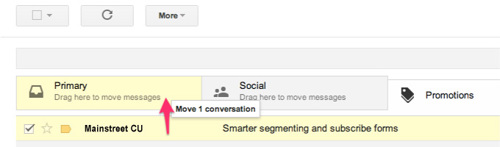
First of all, drag-and-drop the email message from beneath the tab it’s currently filed under, to the “Primary” tab:
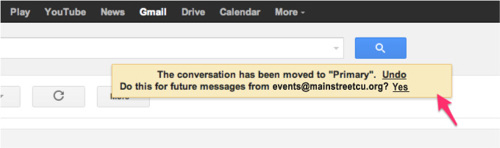
Once done, an alert will appear with, “This conversation has been moved to Primary. Do this for all future messages from [email protected]?” Select “Yes”:
Yahoo
When opening an email message, a “+” symbol should display next to From: and the sender’s name. Select this and an “Add to contacts” pop-up should appear. Select “Save”: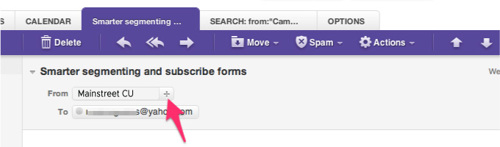
AOL
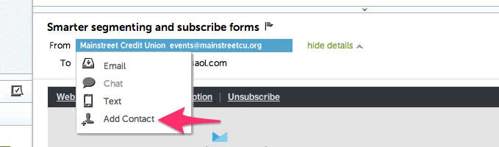
In the preview pane for an opened email message in AOL Mail, select the sender’s From name under the email’s subject line and select “Add Contact” from the drop-down menu:
Apple Mail
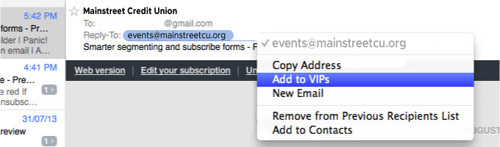
By selecting the From, or Reply-to on an email message, you can choose to “Add to Contacts” or “Add to VIPs.”
Android
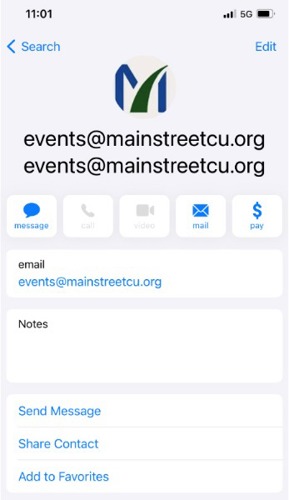
On Android devices, open the email message and touch the picture of the sender that displays before the message. Tap “Add to Contacts.”
No. ATM cards cannot be added to digital wallets because they do not contain the necessary chip technology.
Yes. Debit cards can be added to supported digital wallets such as Apple Pay, Google Pay, and Samsung Pay. Follow the prompts within your device's wallet application.
A cookie has to be downloaded to the computer to allow online access. The cookie name to be installed is "[email protected]."
You will need your Social Security Number and your mortgage loan number. At the log-in screen, click on the link for new users, enter your Social Security Number and mortgage loan number, and then create a user name and password.
It is true, for certain accounts a delete option will not appear. If the delete option doesn't appear this means that the account was automatically added by your home institution. These accounts cannot be deleted; however, they can be excluded. Excluding an account hides that account, its transactions, and its balance from your view in the software apps. This essentially "deletes" the account with the option to re-include it in the future if it ever becomes necessary.
Open “Insights” go to Net Worth section and click on ‘View Net Worth’ and add Asset, then enter the account details and click ‘Save It’.
You may have added an external account that is no longer needed, or an account may automatically sync that you don’t want to factor into your financial picture. Either way, you’re in control and can remove it.
*Note: Deleting the account is different than deleting an institution connection. If you delete the account, only that account will disappear, and the connection will persist. If you delete the institution connection, however, it will delete all the accounts beneath that connection. The steps for deleting the connection are also included below.
Deleting an Account
Select ‘Accounts’ from the top navigation bar.
Select the account you want to delete from the page.
Click on the trash can icon at the bottom right-hand corner of the account detail box.
The ‘Delete This Account’ window will pop up.
Click on Delete.
Deleting an Institution
Click on Manage Institutions in the top right of the screen.
Find the Institution you wish to remove.
Click on the trash can icon on the right-hand side.
Select Delete Institution.
*Note: You will not have the option to delete your home institution.
Mint.com is a third-party software provider that allows customers to aggregate their financial information and is not a financial institution. It does not allow users to perform any online banking activities, such as pay bills or transfer money. Insights PFM is fully integrated with our online banking platform and offers easy-to-use tools to help you see your full financial picture, within a platform you know and trust.
Online Banking account information is updated in Insights daily.
You will be contacted through the e-mail address listed in your ‘Profile’.
The following steps may help:
Try searching for the URL instead of the name.
Make sure you are entering the name correctly. (i.e. Wells Fargo not Wellsfargo)
Instead of searching for the generic term 'Master Card', search for the issuer listed on the back of the card.
Here are a few tips that might help:
Answer as many questions as you put on file when you registered with your financial institution.
The number of questions you need to answer may be less than the number of form fields displayed on the page.
For some financial institutions, the questions and answers need to be in the exact same order as they are listed on your financial institution site.
If you've forgotten the questions, you can try logging into the online banking at your institution's website or calling their online banking support, to retrieve them.
Answers to these questions may be case-sensitive. i.e. 'Cat' will work, while 'cat' will not.
Keeping your financial information safe and secure is very important to us. Our online services offer you the best security currently available in a commercial environment so that your personal and financial information is protected.
Our new online banking tools bring all your accounts and financial information into one place and offers new budgeting and spending tools to help you stay on top of your finances.
With Insights PFM (Personal Financial Management), you can:
See your transactions automatically categorized and graphically displayed in the account summary page.
Change and/or exclude transaction categorizations from your spending analysis.
Create and manage budgets based on your spending habits.
See all your accounts in one place by linking accounts you hold at other financial institutions.
Add assets and liabilities (e.g. car, home, or even money under the mattress) so you can see a more complete picture of your finances.
Create account groups so that transaction history and spending analysis for related accounts can be viewed together.
View your spending and budgets using Online Access and our Mobile app.
If you are unable to locate your institution, select the Help (?) icon located in the top menu. From there you can submit a request by clicking on the "Submit a Support Request" option at the bottom. Please submit the name you searched for, the complete institution name, their URL and any other additional details you can provide.
There are many types of online banking accounts, and not all are compatible with common aggregation methods. The Insights PFM provider utilizes multiple aggregation sources and uses an aggregation engine to provide the best possible coverage, but when an unsupported institution is encountered, a manual account can be created in the Accounts widget.
Due to factors outside our control, including approval of the financial institutions themselves, we cannot guarantee that your institution will be supported, but we will do our best. We add support for more banks and credit unions all the time.
Budgets can help you track and control your spending in select budget categories. You can use budgets to track all of your regular household expenses, or just specific categories that you want to monitor more closely. Budgets are useful for setting and working towards financial goals, or simply being more aware of your spending habits.
The Spending Wheel displays your spending across all categories for the time period selected. Use the date range selector to specify what date range you would like to view.
You can click on a category from the list, or in the wheel, to view your subcategory spending. Then click the center of the wheel or from the list to view the specific transactions in the selected subcategory.
*Note: Your transactions must be categorized for the Spending Wheel to show actual spending. If your spending in a given category looks wrong, review your transactions for inaccuracies.
When accounts are initially added to an external account, an initial request of 90 days of history will be made. After the initial account setup, Insights PFM will pull new transactions from the last 30 days, so you must sign in at least once every 30 days to avoid creating a gap in your data.
When the consumer accesses the account each day the account will be updated with the recent transactions for the account. Currently there is no limit to archival history.
Review your transactions to make sure they are categorized correctly. A “missing category” is caused by a large income transaction that has been categorized inappropriately.
You can place a stop payment on a lost or stolen check that has not yet been presented for payment by phone or at any branch.
By phone: Contact the Member Assistance Center
Branch: Stop by any branch location
Stop payments placed through the Member Service Center or at a branch are assessed a fee of $25 per request or $35 for a series of checks.
Automatic Loan Payments allow regular payments on a Mainstreet loan to be transferred from your checking or savings account. To set up automatic payments, call the Member Assistance Center or stop by any branch location.
OnlineAccess users may sign up for Mainstreet's Bill Payer service. Bill Payer provides flexible options for paying Credit Union loans and other businesses or individuals. Learn more.
You can use our mobile banking app, OnlineAccess through your PC, or PhoneAccess from a touch tone phone. You may also visit any branch or call our Member Assistance Center.
Yes. You can get locked out of the enrollment process if too many attempts are made with an incorrect verification code (more than six times in a single hour). You must wait an hour to try again following your first attempt. If you make more than 20 unsuccessful attempts in a 24-hour period, your login will be 'Suspended' and you will not be able to attempt again for 24 hours. If you have questions or need additional assistance, please contact our Member Assistance Center at (913) 599-1010 during our regular banking hours for assistance.
Codes sent by email are not available, but can be received using one of the following options:
Text message
Phone call
Authy App (A third-party app that generates a one-time passcode. To register you will need an email address and phone number.)
You can reset your own two-factor authentication enrollment in both the app and online by going to your Profile page, then select Security within the Settings area.
Two-Factor Authentication (2FA) is a security feature that helps safeguard your account information. To implement 2FA, you will need to enroll an email address and a phone number (mobile or landline). Once this information is entered, you'll choose one of three options to receive a one-time verification code:
Text message to the mobile phone entered, or
Automated phone call to phone number entered, or
Authenticator App. Download the Authy app
After entering the verification code from a secure computer, you have the option to select "Don't ask for code again on this computer." This allows you to avoid entering a verification code during each login. This option should never be selected on a shared or public computer.
Codes will expire within three minutes.
Yes! If you’ve added more profiles to your mobile app, you will need to set up 2FA for each of them. If the account has already enrolled in 2FA, you will need the verification code sent to that user.
There are several reasons you may be prompted for a verification code. This may include:
logging in using different browsers
deleting your browser history
you have set your browser settings to delete your cookies and history automatically
You can update your phone number or email address in mobile banking.
Log In
Click on the User Profile icon and click Settings
Click Edit next to your phone or email
Verify your password
Edit your contact information
Click Save
Phone and email updates will happen immediately. All address updates will be reviewed by a member service representative and you may be contacted for additional information.
You can change your username or password at any time in mobile banking.
To change username:
Log in
Select your username icon in the top right corner or menu in mobile banking
Select Settings and then select Security option on the left side menu
In the Username field select Edit
Enter your current password when prompted
Change your username and select Save
To change password:
Log in
Select your username icon in the top right corner or menu in mobile banking
Select Settings and then select Security option on the left side menu
In the Password field select Edit
Enter your existing password, and then enter a new password
Select Save
There is no application fee for a pre-approval, however once a specific address is identified and before an appraisal is ordered, a $450 application deposit is collected. This application deposit is credited back at closing.
You pay a predetermined interest rate for the duration of the mortgage. Mainstreet offers you a choice of 10, 15, 20 or 30-year terms. You will pay more interest over the term of the 30-year mortgage but your monthly payments are lower than the shorter-term fixed-rate loans that we offer. With the 10, 15 or 20-year mortgage, you have a higher monthly payment but you build up the equity in your home faster.
Yes. Beginning July 27, 2026, you can submit card disputes directly through Online Banking and the Mobile App without calling the credit union.
Yes. Members can report a card as lost or stolen directly through digital banking.
Yes. Travel notices can be submitted through Online Banking or the Mobile App before your trip. No phone call is required.
Important: A travel notice does not eliminate all fraud monitoring. If suspicious or unusual card activity is detected while you're traveling, you may receive a fraud alert text asking you to verify a transaction. These alerts help protect your account and ensure legitimate purchases can be processed as quickly as possible. Fraud alert text messages are sent 24/7 from 2WC using short code 96923. We recommend saving 96923 in your contacts so you can quickly recognize and respond to fraud alerts. If there is not a response to the text, follow-ups will be sent via email and then a phone call.
Yes. You'll be able to instantly turn your card off through Online Banking or the Mobile App. Once you locate the card, you can turn it back on yourself without calling the credit union.
Yes. You can establish card controls including:
Merchant category restrictions
Transaction type controls
Spending limits
These controls provide an additional layer of account security and spending management.
Contact Us
If you have questions regarding your ATM or debit card, please contact us or visit your nearest branch. You may also send a secure message through Digital Banking.
Yes, you will use the same user ID and password that you use to log in to online banking.
Two-Factor authentication uses a unique one-time access code to verify identity and log on to mobile banking. If you are unable to receive text (SMS) messages, you can choose to receive your access code via a phone call.
On the verification code screen click Try another way located beneath the Verify button
Select Phone Call and click Next
You will receive an automated phone call that will provide your access code (Have a pen and paper ready)
Return to the verification code screen
Enter your access code and click Verify
If you are still having trouble, contact the credit union to ensure we have the correct phone number on file.
Download the new mobile banking app from the App Store or Google Play.
Remove the old app: Be sure to delete the MCU Mobile app icon.
To reach the OnlineAccess login page:
Visit the OnlineAccess portal
Sign in using the green box in the upper left-hand section of our homepage
If you have not enrolled in OnlineAccess, select Enroll on the OnlineAccess login page to get started.
If you are experiencing difficulties logging on, contact the Member Assistance Center:
913-599-1010
(888) 395-1010 toll-free
8 AM – 6 PM CDT, Monday – Friday
9 AM – 1 PM CDT, Saturday
An email and a phone number are required for the two-step authentication. The one-time access code will be sent via text or phone call. The phone number must match our records for the additional security layer to work correctly.
As a security measure, access to your account is locked after a limited number of unsuccessful login attempts. Further attempts to login will fail, displaying the above message.
To reset your password and unlock your account, contact the Member Assistance Center.
913-599-1010
(888) 395-1010 toll-free
8 AM – 6 PM, CDT Monday thru Friday
9 AM – 1 PM, CDT Saturdays
No. Check the “Don’t ask for codes again on this computer” box if you do not want to receive a confirmation code or phone call each time you log in. If you prefer to input a confirmation code with each use, you can leave the box unchecked or use the 2-Factor Authentication app to deliver the code.
NOTE: If your browser is set to clear cookies every time, then clicking the button will not help. If you ever want to remove a device and reset your security settings, you can change them in settings once logged in to mobile banking.
This error is present during the enrollment process or when updating credentials. Click on Show Rules below the username and password field to see the credential requirements.
This error is present during the enrollment process and means that the phone number you entered does not match the phone number we have on file. If you have an alternative phone number, you can try again. If you would like to update your phone number in our system or need other assistance, please contact us.
This error is present during the log in process and typically means that our records show that you have previously created an account with us. If you forgot your username and password, on the log in page click Forgot? Follow the steps to recover your account.
This error is present during the log in process and typically means that your account information does not match our records. Please contact us via phone to confirm we have the correct phone number and username on record.
I'm not able to log in to online banking when I click on the login button…
Often this is resolved by clearing your cache in Chrome to remove all cookies. If you need further assistance, please contact us.
This error is present during the log in process and typically means that your credentials didn't match our records. Try entering your credentials one more time. If the error persists, please contact us via phone for further assistance.
This error is present during the log in process and typically means that your account has been locked. This can happen for a variety of reasons but is easily resolved. Please contact us via phone for assistance unlocking your account.
In some cases, the card involved in a dispute may need to be closed. If that happens, just contact us and we'll get you a new one, either an instant-issue card at a branch or a replacement mailed to you.
Review the transaction in online banking or mobile app. If you believe the transaction is fraudulent, submit a dispute directly through online banking or mobile app to turn your card off immediately.
You may also contact the Dispute Center at: 855-651-7474
Monday–Friday, 8:00 a.m.–7:00 p.m. CT
Beginning July 28, 2026, you can report your card as lost or stolen directly through online banking or the mobile app.
You may also call:
• Inside U.S.: 888-297-3416
• Outside U.S.: 206-389-5200
Reporting your card immediately helps prevent unauthorized use.
If our dispute department determines a fraudulent charge is valid, any overdraft fee caused by that charge will be refunded. Overdraft fees caused by other transactions while funds were unavailable are not refunded.
Yes. Beginning July 27, 2026, fraud alerts can be delivered via SMS/text message so you can quickly verify suspicious activity.
Important: A travel notice does not eliminate all fraud monitoring. If suspicious or unusual card activity is detected while you're traveling, you may receive a fraud alert text asking you to verify a transaction. These alerts help protect your account and ensure legitimate purchases can be processed as quickly as possible. Fraud alert text messages are sent 24/7 from 2WC using short code 96923. We recommend saving 96923 in your contacts so you can quickly recognize and respond to fraud alerts.
Log into your OnlineAccess
Select eStatements in the menu located on the left hand side of the screen.
Choose the option to sign up for eStatements
Spoofing is when a caller deliberately falsifies the information transmitted to your caller ID display to disguise their identity. Scammers often use neighbor spoofing so it appears that an incoming call is coming from a local number or spoof a number from a company or a government agency that you may already know and trust. If you answer, they use scam scripts to try to steal your money or valuable personal information, which can be used in fraudulent activity.
https://youtu.be/PS3llQfRLD8 (Opens in a new window)
Reminder:
Mainstreet Credit Union will NOT contact you requesting you to share account information. Fraudsters can spoof real numbers (including your credit union’s phone number), and falsely claim that there has been potential fraudulent activity on your account, in an attempt to scare you into providing your account information.
If you are contacted by someone asking you to provide passwords or any information that appears on your debit, ATM, or credit card (such as card number, CVV number, expiration date, etc.), DO NOT share anything with them. HANG UP IMMEDIATELY. Remember these fraudsters can mask phone numbers and make it appear as though they are calling from a valid number, even a Mainstreet Credit Union number. If you are unsure whether the representative calling you is from Mainstreet Credit Union, hang up and contact us at 913-599-1010 or toll-free 888-395-1010 or stop by a branch so we can review your account activity with you.
Make the switch. Make progress.
At Mainstreet, membership helps you move forward—your way.
Take advantage of exclusive member offers
View our current specials.
Read real experiences from fellow members
View member success stories.
Fuel the growth of your community
View our community impact.
Quick Budget Tip
Try the 50/30/20 split. Spend 50% on needs, 30% on wants, and 20% on savings.
Pages within: